Build a Contrast Matrix for Interactive UI States
Check text against actual hover, disabled, and selected backgrounds instead of approving a palette from one default pair.
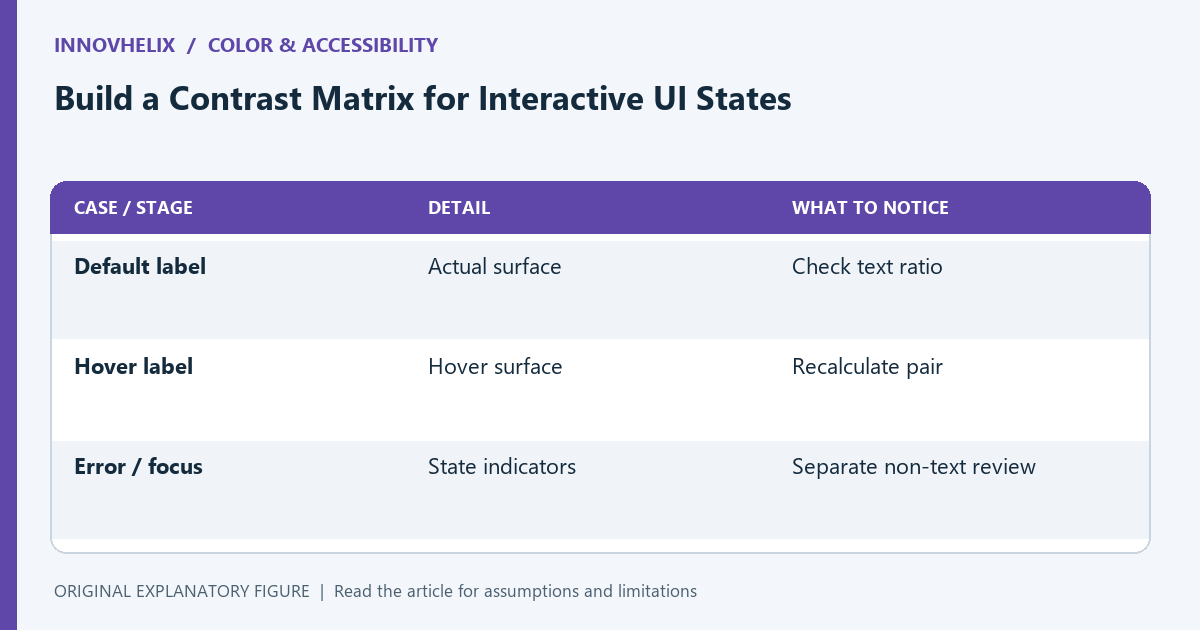
A palette can pass a default text contrast check and fail when a button is hovered or a row is selected. A useful review follows the combinations the interface actually renders. This guide builds a small state matrix, separates text from non-text checks, and keeps the result connected to named design tokens so later changes are easier to audit.
List rendered pairs rather than isolated colors
Write each component and state as a row: button default, button hover, selected row, input error, and disabled control. Record the actual foreground and background used in that row. A color name such as accent is not enough if different states use different surfaces.
Resolve opacity and layering before choosing the pair. Semitransparent text over a background is not equivalent to opaque text with the same RGB values. Use the visible composited colors for the comparison or a method that accounts for the layers.
Apply the correct text criterion
WCAG 2.2’s minimum text contrast criterion generally uses 4.5:1 for normal text and 3:1 for large text, with exceptions including inactive controls. Large text has a specific size definition; a label does not qualify merely because it is bold.
Keep the criterion in a separate column. Do not use the large-text threshold for a small button label to make the row pass. If an inactive control is exempt, record that fact rather than pretending its pale label has the same readability as an active one.
Check state information beyond label text
An error border, focus indicator, or selected marker conveys information outside the text itself. These need their own accessibility review. A passing label ratio does not establish that keyboard focus is visible or that an error can be understood without color.
For the input-error row, inspect the message, border, and icon separately. Provide a textual explanation of the error. In the state matrix, add a note for the non-text indicator so the team does not mistake one measurement for an approval of the whole component.
Use a reproducible sample
Create a preview with a normal label over each actual background. For a simple reference, black on white has a contrast ratio of 21:1. Your interactive palette will usually use other pairs, so measure each pair independently instead of comparing colors by eye.
If hover changes only the background, keep the label color fixed in the test and recalculate. If selected changes both, test the resulting combination. Capture token names and measured ratios together so a later token edit points directly to the rows needing another check.
Treat the matrix as a maintenance artifact
Save the state list beside the component documentation. When a token changes, rerun the affected rows and inspect the visible component. Contrast calculation cannot verify layout, wording, focus order, or every user’s perception.
Use the color tool to explore a replacement pair, then retest the complete state. Prefer a small set of explicit pairings to a huge palette with unclear usage. The useful outcome is a traceable decision about each rendered state, including exceptions and checks that remain open.
| Case or stage | Detail | What to notice |
|---|---|---|
| Default label | Actual surface | Check text ratio |
| Hover label | Hover surface | Recalculate pair |
| Error / focus | State indicators | Separate non-text review |