Review a CSV Import With a Schema Checklist
Define column names, blank-value rules, and textual identifiers before treating a CSV-to-JSON preview as a validated import.
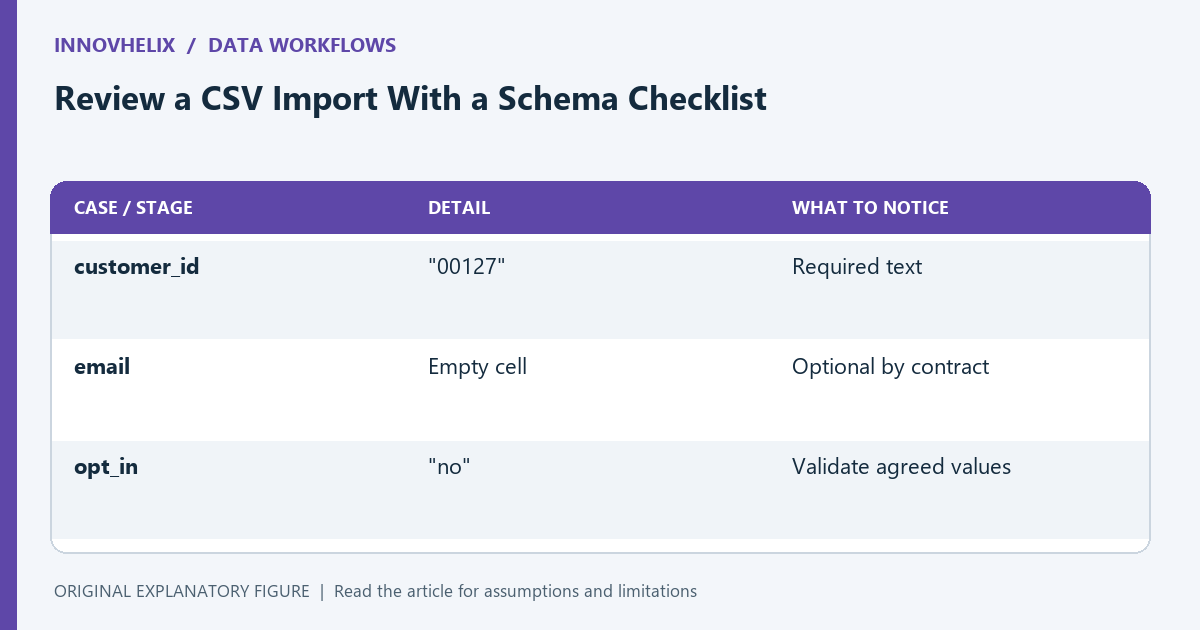
A CSV preview can look orderly while an import still loses important distinctions. Column names, blank cells, and identifier types need a contract outside the delimiter format. This guide uses a small synthetic contact export to build that contract. The goal is to make the next processing step predictable, not to claim that a successful conversion proves the data is correct.
Write a column contract
For each column, record the expected header, type, whether it is required, and what an empty cell means. In a contact export, customer_id might be required text, email optional text, and opt_in an agreed yes/no value. Avoid treating every column as a number just because the first row contains digits.
Check for duplicated and near-duplicated headers. Email and email may be intended as the same field, but changing header case without agreement can merge two distinct columns. Flag ambiguity before converting the file.
Use records that challenge the assumptions
Create a synthetic row with customer_id 00127, a name containing a comma, an empty email field, and an explicit no for opt_in. Add another row with a newline inside a quoted note. These examples reveal more than a row of simple words.
Write expected results beside each fixture. The ID should remain text if leading zeros are meaningful. The comma should remain inside the name. A quoted newline belongs to one field rather than starting another record. Compare the converter’s actual behavior with those expectations.
Separate parsing from validation
Parsing asks whether the delimiter and quoting structure can be read. Validation asks whether a value is allowed in its column. A converter may correctly parse a missing required ID or an unrecognized yes/no spelling. Those values still need review.
Count input records and output objects, accounting for the header and any deliberately ignored blank rows. Then inspect required fields. Do not infer successful validation from a green conversion message unless the tool explicitly performs the checks you need.
Keep rejected rows explainable
When a row fails, record its source position, failing column, and reason in a separate error report. Avoid overwriting the original file while experimenting. A message such as “row 8: customer_id is blank” lets the owner repair the right record.
Decide whether the import stops on the first error or collects all errors. For a small manual upload, collecting errors can reduce repeated correction cycles. For an automated pipeline, the appropriate behavior depends on whether a partial import is acceptable.
Review the output before handing it on
Compare representative converted objects with the contract, including the awkward fixtures. Confirm that a blank cell did not become zero, a textual ID did not become a number, and a false-like value did not disappear. Keep the schema notes with the import script.
Use the CSV-to-JSON tool for an inspection preview and the JSON formatter for structure. The final acceptance step belongs at the receiving system, where required fields and allowed values can be checked. Synthetic fixtures let you repeat that step without exposing real contact information.
| Case or stage | Detail | What to notice |
|---|---|---|
| customer_id | "00127" | Required text |
| Empty cell | Optional by contract | |
| opt_in | "no" | Validate agreed values |