Design keyboard-friendly input, output and error workflows for web tools
An online utility is an interaction, not just a calculation. Users need to locate inputs, understand validation, read results and recover from errors. Keyboard access, explicit labels and accurate status messages make that workflow usable across devices and assistive technologies. Test the complete sequence rather than inspecting only the successful output.
Try the Color Palette & Contrast with the synthetic example below. Processing stays in your browser; the guide explains what the result can and cannot establish.
Before you use the result
- Complete the workflow using only a keyboard.
- Test validation and recovery, not only success.
- Keep status feedback current.
- Check narrow screens and long output.
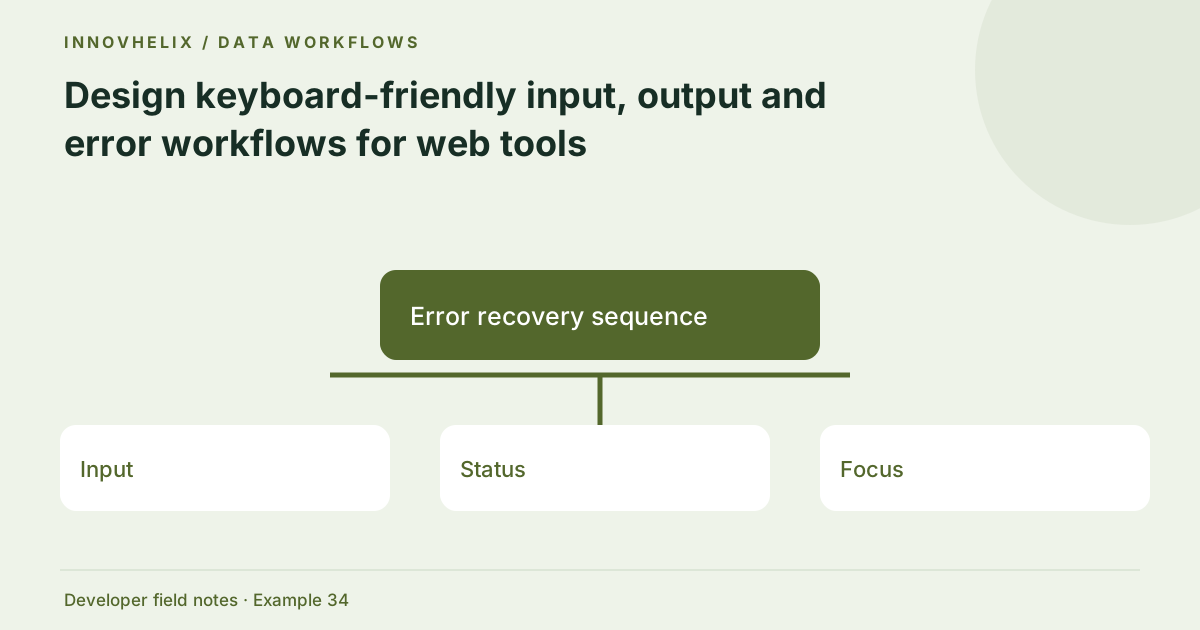
Worked example: error recovery sequence
Use this exact sample to isolate the behavior discussed above. Keep the operation and options with the sample when reporting a result; changing the input representation can change what the test demonstrates.
Input or question
1. Enter malformed JSON
2. Run
3. Read the error
4. Repair the input
5. Run again
Expected result or interpretation
Only the newly valid output should become available for Copy and Download.Copy permission failure needs a usable fallback
Clipboard access may be unavailable on an insecure origin or denied by the browser. A tool should not report success in that case. Select the output and explain that the user can use the device’s Copy command. Test this path with a current result and verify that the selection covers the complete output. Keep focus behavior predictable so a keyboard user can recover without finding the field again. A downloadable file can be another useful route, but it should remain clearly labeled as Download rather than pretending to copy. This fallback addresses an actual environmental failure and complements the successful-path test that only checks whether a clipboard promise resolved.
Label the task and each input
A heading should explain the tool, while each control needs a visible label associated through for and id or equivalent semantics. Instructions should state accepted formats and important limits before the user encounters an error. A textarea’s placeholder is not a durable label. Keep examples available through a real button so users can learn the input format without guessing or typing a long sample.
Preserve focus and predictable actions
Use native buttons and controls that participate in the keyboard tab order. Maintain a visible focus indicator and avoid positive tabindex values that create a confusing sequence. Copy, Download and Reset should have explicit names. Do not move focus to the result automatically after every edit; let users control navigation. A clipboard failure should offer a selectable output rather than failing silently.
Announce current results and errors
A polite live region can announce completed processing and validation feedback without interrupting every keystroke. Clear stale output when input changes or validation fails. Otherwise a previously correct result may appear to belong to the current request. Error text should explain the repair: an invalid hex color needs a six-digit format example, and malformed CSV needs the affected row information.
Verify small screens and non-color feedback
Check that editors stack on narrow screens, long code blocks scroll within their container and controls remain reachable. Use text alongside visual error colors. A contrast ratio helps with chosen color pairs but does not inspect labels, focus order or screen-reader announcements. Test a complete example, one invalid input, copying, downloading and resetting with a keyboard, then review on a mobile-sized viewport.
Test an entire task with intentional failure
Start at the page heading, reach the input with a keyboard, load the example and run it. Read the status, select the output and try Copy and Download. Then introduce an invalid value, run again and verify that the error is understandable and the previous result is unavailable. Repair the input and complete the task. This sequence checks recovery and state transitions that a static screenshot cannot show.
Repeat on a narrow viewport with a long input and output. Horizontal scrolling should remain within code or text containers rather than forcing the entire page sideways. Check that focus indicators are visible near container edges and that buttons wrap without overlapping. With a screen reader, verify labels and status announcements in the context of the whole page; an aria-live attribute alone is not proof of a usable announcement strategy. Avoid excessive announcements on every keystroke. The result should be current and predictable rather than noisy. Review fallback behavior too: clipboard permission can fail, and JavaScript may be disabled. Clear instructions and selectable output help users continue where possible. These checks complement numerical contrast tests by assessing the actual interaction. A utility’s value depends on whether people can finish the task and recover from a mistake, not only on whether its algorithm returns the right string.
Verification cases
- Keyboard-only successful run: Inputs, actions and output remain reachable.
- Invalid input after success: Old result is cleared and the error is announced.
- Clipboard denied: Output is selectable for a manual copy.
Decision reference
| Case | Meaning or choice | What to do with it |
|---|---|---|
| Input | Visible associated label | Explains accepted format |
| Status | Polite live region | Current success or error |
| Focus | Visible indicator | Keyboard location |
| Output actions | Disabled until current output | Avoid stale copying |
Continue the workflow
Read a color contrast ratio without overstating accessibility addresses interpret wcag color contrast checks. Color tokens for hover, focus, errors and disabled states addresses design component states with consistent colors.
Technical reference
Consult MDN live-region guidance for the relevant underlying behavior or concept. Test the exact runtime used by your application when engine compatibility matters.
Corrections are welcome through Contact & feedback. Read our editorial policy for scope and limitations.